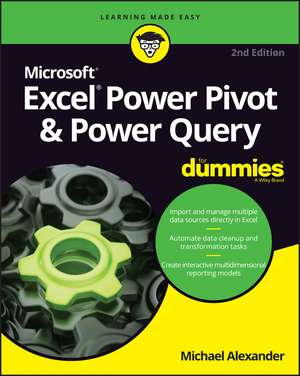
Excel Power Pivot & Power Query for Dummies
Autor Michael Alexanderen Limba Engleză Paperback – 2 mar 2022
Ca și Adam Aspin în Data Mashup with Microsoft Excel Using Power Query and M, autorul distilează experiența reală în principii acționabile, concentrându-se pe eficiența procesării volumelor mari de date. Considerăm că Excel Power Pivot & Power Query For Dummies reprezintă puntea necesară între utilizarea convențională a foilor de calcul și analiza avansată de business intelligence. În timp ce alte resurse se pot pierde în teorie, această lucrare din seria For Dummies adoptă o abordare tehnică și extrem de practică, axată pe rezolvarea blocajelor de performanță în Excel. Structura este riguros organizată pentru a ghida utilizatorul prin fluxul complet de date: de la descoperirea și conectarea la surse externe prin Power Query, până la crearea modelelor relaționale complexe în Power Pivot. Recomandăm atenția deosebită acordată capitolului despre funcțiile personalizate, care permit extinderea capacităților native ale programului. Față de Excel 2019 Bible sau Excel 2019 Power Programming with VBA, lucrări monumentale ale aceluiași Michael Alexander, volumul de față este mult mai specific, ignorând generalitățile pentru a se concentra strict pe motorul de calcul și transformare a datelor. Instrucțiunile sunt însoțite de numeroase capturi de ecran care validează fiecare etapă a procesului, de la manipularea bazelor de date până la publicarea rapoartelor în SharePoint. Tonul este direct, eliminând ambiguitatea și punând accent pe automatizarea proceselor repetitive de curățare a datelor, o problemă critică pentru orice analist modern.
Preț: 207.66 lei
Preț vechi: 259.57 lei
-20%
Carte disponibilă
Livrare economică 28 noiembrie-12 decembrie
Livrare express 17-21 noiembrie pentru 32.91 lei
Specificații
ISBN-10: 1119844487
Pagini: 288
Dimensiuni: 189 x 234 x 18 mm
Greutate: 0.54 kg
Ediția:2nd edition
Editura: Wiley
Locul publicării:Hoboken, United States
V-ar putea interesa
-
 -20%Preț: 246.19 lei307.74 lei
 -
 -20%Preț: 243.56 lei304.45 lei
 -
 -20%Preț: 236.21 lei295.26 lei
 -
 Excel Dashboards and ReportsMichael Alexander-20%Preț: 207.14 lei258.92 lei
 -
 Excel 2019 All-In-One for DummiesGreg Harvey-20%Preț: 225.75 lei282.18 lei
 -
 Data Visualization with Excel Dashboards and ReportsDick KusleikaPreț: 255.33 lei
 -
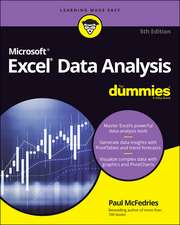 Excel Data Analysis For Dummies, 5th EditionPaul McFedries-20%Preț: 210.98 lei263.72 lei
 -
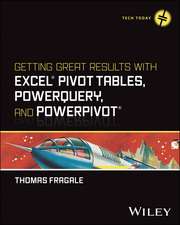 -20%Preț: 250.31 lei312.88 lei
 -
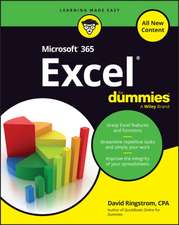 Microsoft 365 Excel For DummiesDavid H. Ringstrom-20%Preț: 143.21 lei179.02 lei
 -
 Microsoft 365 Excel All-in-One For DummiesDavid H Ringstrom-20%Preț: 237.38 lei296.73 lei
 -
 Analyzing Data with Power BI and Power Pivot for ExcelAlberto FerrariPreț: 234.49 lei
 -
 -20%Preț: 210.06 lei262.57 lei
 -
 Microsoft Excel 2019 Step by StepCurtis Frye-20%Preț: 212.31 lei265.39 lei
 -
 Microsoft Excel 2019 Inside OutBill Jelen-20%Preț: 277.51 lei346.89 lei
 -
 -20%Preț: 211.72 lei264.65 lei
 -
 -36%Preț: 175.18 lei273.15 lei
 -
 -35%Preț: 155.81 lei239.35 lei
 -
 Python for Excel Users: Know Excel? You Can Learn PythonTracy Stephens-35%Preț: 241.34 lei368.95 lei
 -
 Learning Power QueryAdam Szczepan Kope¿-20%Preț: 227.87 lei284.84 lei
De ce să citești această carte
Recomandăm această carte profesioniștilor care lucrează cu seturi de date ce depășesc limitele standard ale Excel-ului. Veți câștiga abilitatea de a automatiza importul de date și de a construi modele analitice robuste fără a învăța programare complexă. Este instrumentul ideal pentru a trece de la simple tabele la rapoarte dinamice și scalabile, economisind ore întregi de muncă manuală prin stăpânirea Power Query și Power Pivot.
Despre autor
Michael Alexander este un autor prolific și specialist în aplicații de afaceri, recunoscut la nivel global pentru expertiza sa în Microsoft Excel. Cu o carieră dedicată optimizării proceselor de date, el a semnat lucrări fundamentale pentru comunitatea tehnică, inclusiv Excel 2019 Bible și ghiduri avansate despre programarea VBA. Deși profilul său academic include și contribuții în literatura engleză la St. Andrews University, în mediul IT este apreciat pentru capacitatea de a traduce concepte tehnice complexe în fluxuri de lucru accesibile și eficiente pentru utilizatorii din corporații.
Notă biografică
Descriere scurtă
Cuprins
About This Book 2
Foolish Assumptions 3
Icons Used in This Book 3
Beyond the Book 4
Where to Go from Here 4
Part 1: Supercharged Reporting with Power Pivot 5
Chapter 1: Thinking Like a Database 7
Exploring the Limits of Excel and How Databases Help 7
Scalability 8
Transparency of analytical processes 9
Separation of data and presentation 10
Getting to Know Database Terminology 11
Databases 11
Tables 11
Records, fields, and values 12
Queries 13
Understanding Relationships 13
Chapter 2: Introducing Power Pivot 17
Understanding the Power Pivot Internal Data Model 18
Linking Excel Tables to Power Pivot 20
Preparing Excel tables 21
Adding Excel Tables to the data model 22
Creating relationships between Power Pivot tables 24
Managing existing relationships 26
Using the Power Pivot data model in reporting 27
Chapter 3: The Pivotal Pivot Table 29
Introducing the Pivot Table 30
Defining the Four Areas of a Pivot Table 30
Values area 30
Row area 31
Column area 31
Filter area 32
Creating Your First Pivot Table 33
Changing and rearranging a pivot table 36
Adding a report filter 37
Keeping the pivot table fresh 38
Customizing Pivot Table Reports 40
Changing the pivot table layout 40
Customizing field names 41
Applying numeric formats to data fields 42
Changing summary calculations 43
Suppressing subtotals 44
Showing and hiding data items 47
Hiding or showing items without data 49
Sorting the pivot table 51
Understanding Slicers 52
Creating a Standard Slicer 54
Getting Fancy with Slicer Customizations 56
Size and placement 56
Data item columns 57
Miscellaneous slicer settings 58
Controlling Multiple Pivot Tables with One Slicer 58
Creating a Timeline Slicer 59
Chapter 4: Using External Data with Power Pivot 63
Loading Data from Relational Databases 64
Loading data from SQL Server 64
Loading data from Microsoft Access databases 70
Loading data from other relational database systems 72
Loading Data from Flat Files 75
Loading data from external Excel files 76
Loading data from text files 78
Loading data from the Clipboard 81
Loading Data from Other Data Sources 82
Refreshing and Managing External Data Connections 83
Manually refreshing Power Pivot data 83
Setting up automatic refreshing 84
Preventing Refresh All 85
Editing the data connection 86
Chapter 5: Working Directly with the Internal Data Model 89
Directly Feeding the Internal Data Model 89
Managing Relationships in the Internal Data Model 95
Managing Queries and Connections 96
Creating a New Pivot Table Using the Internal Data Model 97
Filling the Internal Data Model with Multiple External Data Tables 98
Chapter 6: Adding Formulas to Power Pivot 103
Enhancing Power Pivot Data with Calculated Columns 103
Creating your first calculated column 104
Formatting calculated columns 105
Referencing calculated columns in other calculations 106
Hiding calculated columns from end users 107
Utilizing DAX to Create Calculated Columns 108
Identifying DAX functions that are safe for calculated columns 108
Building DAX-driven calculated columns 110
Month sorting in Power Pivot-driven pivot tables 112
Referencing fields from other tables 113
Nesting functions 115
Understanding Calculated Measures 116
Creating a calculated measure 116
Editing and deleting calculated measures 118
Free Your Data with Cube Functions 119
Chapter 7: Diving into DAX 121
DAX Language Fundamentals 121
Using DAX operators 125
Applying conditional logic in DAX 126
Working with DAX aggregate functions 128
Exploring iterator functions and row context 129
Understanding Filter Context 133
Getting context transitions with the CALCULATE function 135
Adding flexibility with the FILTER function 137
Part 2: Wrangling Data with Power Query 141
Chapter 8: Introducing Power Query 143
Power Query Basics 144
Starting the query 144
Understanding query steps 150
Refreshing Power Query data 152
Managing existing queries 153
Understanding Column-Level Actions 155
Understanding Table Actions 157
Chapter 9: Power Query Connection Types 159
Importing Data from Files 160
Getting data from Excel workbooks 160
Getting data from CSV and text files 161
Getting data from PDF files 163
Getting data from folders 164
Importing Data from Database Systems 165
A connection for every database type 165
Getting data from other data systems 167
Walk-through: Getting data from a database 168
Managing Data Source Settings 170
Data Profiling with Power Query 171
Data Profiling options 172
Data Profiling quick actions 173
Chapter 10: Transforming Your Way to Better Data 175
Completing Common Transformation Tasks 176
Removing duplicate records 176
Filling in blank fields 178
Concatenating columns 179
Changing case 181
Finding and replacing specific text 181
Trimming and cleaning text 183
Extracting the left, right, and middle values 184
Splitting columns using character markers 187
Pivoting and unpivoting fields 189
Creating Custom Columns 193
Concatenating with a custom column 195
Understanding data type conversions 196
Spicing up custom columns with functions 197
Adding conditional logic to custom columns 199
Grouping and Aggregating Data 201
Working with Custom Data Types 203
Chapter 11: Making Queries Work Together 207
Reusing Query Steps 208
Understanding the Append Feature 211
Creating the needed base queries 212
Appending the data 213
Understanding the Merge Feature 216
Understanding Power Query joins 216
Merging queries 217
Understanding Fuzzy Match 221
Chapter 12: Extending Power Query with Custom Functions 225
Creating and Using a Basic Custom Function 225
Creating a Function to Merge Data from Multiple Excel Files 229
Creating Parameter Queries 236
Preparing for a parameter query 236
Creating the base query 238
Creating the parameter query 239
Part 3: The Part of Tens 243
Chapter 13: Ten Ways to Improve Power Pivot Performance 245
Limit the Number of Rows and Columns in Your Data Model Tables 246
Use Views Instead of Tables 246
Avoid Multi-Level Relationships 246
Let the Back-End Database Servers Do the Crunching 247
Beware of Columns with Many Unique Values 248
Limit the Number of Slicers in a Report 248
Create Slicers Only on Dimension Fields 249
Disable the Cross-Filter Behavior for Certain Slicers 250
Use Calculated Measures Instead of Calculated Columns 250
Upgrade to 64-Bit Excel 251
Chapter 14: Ten Tips for Working with Power Query 253
Getting Quick Information from the Queries & Connections Pane 253
Organizing Queries in Groups 254
Selecting Columns in Queries Faster 255
Renaming Query Steps 256
Quickly Creating Reference Tables 257
Viewing Query Dependencies 258
Setting a Default Load Behavior 259
Preventing Automatic Data Type Changes 259
Disabling Privacy Settings to Improve Performance 261
Disabling Relationship Detection 261
Index 263