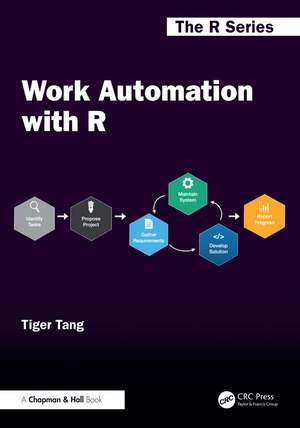
Work Automation with R: Chapman & Hall/CRC The R Series
Autor Tiger Tangen Limba Engleză Paperback – 22 sep 2026
The reader can jump to any chapter to explore solutions or best practices for specific tasks or read the book in chronological order if they are just starting a new automation project. Each chapter begins with a common data task and explores key concepts and multiple solutions using R packages. The author presents a range of solutions as there are often multiple ways to solve the same problem, with the different options have been compared along with key functions discussed in each, and reproducible examples have also been provided.
Aimed at business professionals and data practitioners who want to automate their work, the book assumes a basic working knowledge of R, including writing and running scripts, and performing common data tasks such as importing, transforming, and summarizing data. It also assumes a willingness to write small helper functions to automate repeated steps. Experience with Quarto or R Markdown is helpful but not required. Key tools and patterns are introduced as needed in end-to-end automation examples.
Key Features:
• Offers task-focused resources to smooth automation development.
• Helps identify and minimize common roadblocks that might impact progress.
• Establishes a reproducible workflow of automating tasks with R in a business setting.
Din seria Chapman & Hall/CRC The R Series
- 8%
 Preț: 552.89 lei
 - 20%
 Preț: 406.28 lei
 - 8%
 Preț: 443.45 lei
 - 8%
 Preț: 493.59 lei
 -
 Preț: 442.08 lei
 - 8%
 Preț: 610.91 lei
 - 15%
 Preț: 530.47 lei
 - 15%
 Preț: 453.73 lei
 - 15%
 Preț: 587.96 lei
 - 15%
 Preț: 626.36 lei
 - 20%
 Preț: 702.96 lei
 - 20%
 Preț: 1165.32 lei
 - 15%
 Preț: 543.36 lei
 - 15%
 Preț: 448.12 lei
 - 20%
 Preț: 1490.60 lei
 - 20%
 Preț: 728.89 lei
 - 18%
 Preț: 721.72 lei
 - 20%
 Preț: 513.86 lei
 - 15%
 Preț: 459.11 lei
 - 15%
 Preț: 605.86 lei
 -
 Preț: 237.42 lei
 - 18%
 Preț: 1003.26 lei
 - 20%
 Preț: 1184.33 lei
 - 18%
 Preț: 1250.55 lei
 -
 Preț: 485.61 lei
 - 20%
 Preț: 400.89 lei
 - 20%
 Preț: 416.24 lei
 - 18%
 Preț: 959.71 lei
 -
 Preț: 212.03 lei
 - 20%
 Preț: 269.87 lei
 - 18%
 Preț: 1276.79 lei
 - 20%
 Preț: 1314.25 lei
 - 15%
 Preț: 566.12 lei
 - 18%
 Preț: 692.78 lei
 - 18%
 Preț: 928.58 lei
 -
 Preț: 347.22 lei
 -
 Preț: 484.25 lei
 -
 Preț: 484.25 lei
 -
 Preț: 484.25 lei
Preț: 361.85 lei
Preț vechi: 512.76 lei
-29% Nou
Puncte Express: 543
Carte indisponibilă temporar
Doresc să fiu notificat când acest titlu va fi disponibil:
Se trimite...
Specificații
ISBN-13: 9781032440163
ISBN-10: 1032440163
Pagini: 398
Ilustrații: 340
Dimensiuni: 178 x 254 mm
Greutate: 0.74 kg
Ediția:1
Editura: CRC Press
Colecția Chapman and Hall/CRC
Seria Chapman & Hall/CRC The R Series
ISBN-10: 1032440163
Pagini: 398
Ilustrații: 340
Dimensiuni: 178 x 254 mm
Greutate: 0.74 kg
Ediția:1
Editura: CRC Press
Colecția Chapman and Hall/CRC
Seria Chapman & Hall/CRC The R Series
Public țintă
Academic, Professional Practice & Development, and Professional ReferenceNotă biografică
Tiger Tang is a data science leader in the automotive industry, where he leads teams building large-scale, production-grade analytics and machine learning systems. His work focuses on automation, natural language processing, and data-driven products that transform complex, real-world data into reliable and reproducible workflows. He has led automation initiatives that have saved tens of thousands of hours of manual effort and developed multiple Shiny applications supporting hundreds of daily analytical decisions. Tiger is also active in the data science community, regularly speaking on applied R, Shiny, and analytics at conferences and professional events.
Cuprins
List of Figures List of Tables Preface Getting Started About the author 1 Creating an automation work project 1.1 Automation workflow 1.2 Automation opportunities 1.2.1 Types of work automation 1.2.2 Applying automation types in R 1.3 Project proposal 1.3.1 Goal 1.3.2 Impact 1.3.3 Resources 1.4 Requirements gathering 1.4.1 Key components 1.4.2 Tasks prioritization 1.5 Code development 1.5.1 Replacing manual processes 1.5.2 QA and testing 1.5.3 Staying on target 1.6 Maintenance 1.6.1 Hand-off documentation 1.6.2 Planning for future enhancements 1.7 Metrics and project updates 1.7.1 Impact update 1.7.2 Lessons learned 1.8 Conclusion 2 Working with real-world data 2.1 Data import and export workflow 2.1.1 Inspecting raw data 2.1.2 Selecting the import method 2.1.3 Verifying the import 2.2 Importing and exporting structured data 2.2.1 Importing delimited text files 2.2.2 Importing other structured file types 2.3 Customizing data import behavior 2.3.1 Partial imports 2.3.2 Working with missing values (NA strings) 2.3.3 Working with column types 2.4 Advanced import techniques 2.4.1 Importing large files efficiently 2.4.2 Managing memory limits 2.4.3 Comparing import methods 2.4.4 Optimizing import speed 2.5 Importing and merging multiple files 2.5.1 Batch imports from folders 2.5.2 Importing selected files 2.5.3 Using parallel processing for importing 2.5.4 Exporting data in batches 2.6 Importing and exporting unstructured data 2.6.1 JSON 2.6.2 Image 2.6.3 PDF 2.6.4 Audio 3 Working with databases 3.1 Understanding databases 3.1.1 Relational databases 3.1.2 Non-relational databases 3.2 Connecting to databases 3.2.1 General workflow 3.2.2 Database-specific connections 3.2.3 Handling authentication 3.3 Querying databases 3.3.1 Inspecting table information 3.3.2 Data definition operations 3.3.3 Data extraction workflows 3.4 Other considerations 3.4.1 Common use cases 3.4.2 Common issues with dates 3.4.3 Performance optimization best practices 3.4.4 Further integration 4 Working with plots 4.1 Bar charts 4.1.1 Basic bar chart 4.1.2 Stacked bar chart 4.1.3 Grouped bar chart 4.1.4 Interactive bar chart 4.1.5 Racing bar chart 4.2 Line charts 4.2.1 Basic line chart 4.2.2 Line chart with markers 4.2.3 Interactive line chart 4.2.4 Animated line chart 4.3 Box plots 4.3.1 Basic box plot 4.3.2 Violin plot 4.3.3 Interactive box plot 4.4 Pie charts 4.4.1 Basic pie chart 4.4.2 Interactive pie chart 4.5 Other chart types 4.5.1 Heat map 4.5.2 Dual axis chart 4.6 Customization 4.6.1 Labels and text elements 4.6.2 Annotation 4.6.3 Fonts 4.6.4 Images 4.7 Themes 4.7.1 Themes in ggplot2 4.7.2 Using themes with ggthemes 4.7.3 Customizing your own theme 4.8 General considerations 4.8.1 Automation in plotting 4.8.2 General guidelines 5 Working with maps 5.1 Static maps 5.1.1 Country-level maps 5.1.2 Continent-level maps 5.1.3 World maps 5.2 Interactive maps 5.2.1 Country-level maps 5.2.2 Continent-level maps 5.2.3 World maps 5.3 Street map with leaflet 5.3.1 Working with markers 5.3.2 Working with pop-ups 5.3.3 Using different map tiles 6 Working with tables 6.1 HTML tables with basic formats 6.1.1 DT 6.1.2 reactable 6.1.3 gt 6.2 HTML tables with search, filtering, and export 6.2.1 DT 6.2.2 reactable 6.2.3 gt 6.3 Conditional formatting and styling 6.3.1 Styling columns and rows 6.3.2 Styling based on values in other columns 6.3.3 Styling part of a cell 6.3.4 Styling with color scales 6.3.5 Styling with emojis and images 6.3.6 Styling with inline charts 6.4 Interactivity with HTML tables 6.4.1 Clickable hyperlinks 6.4.2 Hover-over tooltips 6.4.3 Interactivity with other widgets 6.4.4 Tables in Shiny applications 7 Working with reports 7.1 HTML reports and dashboards 7.1.1 Report structure template 7.1.2 Standard report workflow 7.1.3 Using parameters for dynamic reports 7.1.4 Dashboard design with flexdashboard 7.2 Excel reports 7.2.1 Extracting from Excel spreadsheets 7.2.2 Updating Excel spreadsheets 7.2.3 Customization with Excel 7.2.4 Excel report workflow 7.3 Word reports 7.3.1 Extracting from Word documents 7.3.2 Updating Word documents 7.3.3 Customization with Word 7.3.4 Word report workflow 7.4 PDF reports 7.4.1 Extracting from PDF 7.4.2 Modifying PDFs 7.4.3 Customization with PDF 7.4.4 PDF report workflow 7.5 Working with presentations 7.5.1 Updating PowerPoint slides with officer 7.5.2 Interactive Slides with R Markdown and Quarto 8 Working with emails 8.1 Setting up email connections 8.1.1 Outlook 8.1.2 Gmail 8.1.3 Other providers 8.2 Send a generic email 8.2.1 RDCOMClient for Outlook on Windows 8.2.2 Blastula option 8.2.3 Microsoft365R option 8.2.4 SendmailR option 8.3 Customizing your emails 8.3.1 Formatting email body 8.3.2 Embedding and attaching content 8.3.3 Other customization 8.4 Creating an email report 8.4.1 Writing narrative summaries 8.4.2 Automated email workflows 8.4.3 Triggering emails from a Shiny app 8.5 Reading and processing emails 8.5.1 Reading emails from Outlook 8.5.2 Reading emails from Gmail 8.5.3 Automation examples with processing emails 9 Working with messaging apps 9.1 Platform setup and integration 9.1.1 Slack application setup 9.1.2 Teams application setup 9.2 Message content and formatting 9.2.1 Slack 9.2.2 Teams 9.3 Uploading content to messaging apps 9.3.1 Uploading files (Slack and Teams) 9.3.2 Uploading plots (Slack and Teams) 9.3.3 Uploading HTML widgets (Slack and Teams) 9.4 Automating message delivery 9.4.1 Regular updates and reminders 9.4.2 Job and metric notifications 9.4.3 Report summary delivery 9.5 Monitoring and automated interaction 9.5.1 Monitoring incoming messages 9.5.2 Auto responses 9.6 Maintenance and evaluation 9.6.1 Monitoring 9.6.2 Measuring impact 10 End to end with Shiny 10.1 Creating interactive tables with Shiny 10.1.1 A minimal example 10.1.2 Extending table functionality 10.2 Building dynamic plots with Shiny 10.2.1 A minimal example 10.2.2 Extending plot functionality 10.3 Visualizing geographic data with Shiny 10.3.1 A minimal example 10.3.2 Extending map functionality 10.4 Querying and updating databases with Shiny 10.4.1 A minimal example 10.4.2 Extending database functionality 10.5 Automating data import and evaluation with Shiny 10.5.1 A minimal example 10.5.2 Extending evaluation workflows 10.6 Generating reports with Shiny 10.6.1 A minimal example 10.6.2 Extending reporting workflows 10.7 Additional Shiny use cases 10.7.1 Interactive metric exploration 10.7.2 Building a data labeling interface 11 Combine everything and automate 11.1 Scenarios for automation 11.2 Preparing code for automation 11.2.1 Using a project-oriented workflow 11.2.2 Documenting your code 11.2.3 Cleaning code 11.2.4 Removing hidden dependencies 11.2.5 Connecting code 11.3 Testing automated workflows 11.3.1 Unit tests 11.3.2 User acceptance tests 11.3.3 Anomaly tests 11.4 Scheduling automated jobs 11.4.1 Scheduling with cronR 11.4.2 Scheduling with taskscheduleR 11.4.3 Scheduling with Posit Connect 11.4.4 Scheduling with other automation tools 11.5 Monitoring automated jobs 11.5.1 Operation notifications 11.5.2 Operation logs 11.6 End-to-end example 11.6.1 Use case overview 11.6.2 Step-by-step implementation 12 Maintain the automation 12.1 Documenting requirements 12.1.1 Requirements template 12.1.2 Key considerations 12.2 Documenting instructions 12.2.1 Instruction templates 12.2.2 Key considerations 12.3 Internal training 12.3.1 R knowledge 12.3.2 Institutional knowledge 12.4 Tracking usage 12.4.1 Usage notifications 12.4.2 User metrics 12.5 Tracking automation impact 12.5.1 Hours saved 12.5.2 Training and documentation benefits 12.5.3 Other impacts 13 Performance Optimization, Concurrency, and Error Handling 13.1 Process efficiency 13.1.1 Identifying long operations 13.1.2 Parallel processing 13.1.3 Supporting concurrent users in Shiny 13.2 Handling errors 13.2.1 Creating custom errors 13.2.2 Capturing errors with tryCatch()AppendixA Table styling utilities A.1 color_scale_DT() A.2 color_scale_rt() A.3 styleColorBarMiddle() A.4 bar_reactable() B Report utilities B.1 Adding branding to R Markdown reports B.2 Embedding report summaries in emails C Visualization utilities C.1 Creating animated geographic maps with Plotly
Descriere
Work Automation with R provides a solid framework on how to automate tasks and workflows in the workplace with R. This book introduces the most common components used in R automation, one by one, and then shows how to combine them to tackle real-world tasks.