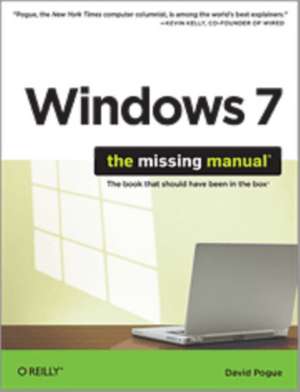
Windows 7: The Missing Manual
Autor David Pogueen Limba Engleză Paperback – 27 apr 2010
În analiza metodologiei de operare a sistemului Windows 7, reținem abordarea pragmatică a lui David Pogue în acest volum publicat de O'Reilly. Ne-a atras atenția modul în care autorul structurează arhitectura de utilizare a sistemului, trecând dincolo de interfața grafică spre optimizarea fluxurilor de lucru. Găsim în această carte o documentație detaliată despre configurarea rețelelor locale, securizarea datelor prin proceduri de backup și gestionarea perifericelor, de la smartphone-uri la tablete PC. Spre deosebire de manualele tehnice aride, acest ghid explorează funcțiile de căutare avansată și integrarea aplicațiilor multimedia prin Media Center, oferind soluții concrete pentru depanarea și întreținerea sistemului. Complementar lui Windows XP for Starters: The Missing Manual, volumul de față acoperă tranziția tehnologică majoră de la vechile standarde spre noile cerințe de conectivitate WiFi și interacțiune tactilă, zone pe care titlul dedicat XP nu le putea aborda. În timp ce Windows 7 de William Stanek se concentrează pe pași esențiali de configurare, Windows 7: The Missing Manual extinde perspectiva asupra celor 40 de utilitare gratuite incluse, oferind un context mult mai vast pentru utilizatorii care doresc să stăpânească ecosistemul Microsoft în profunzime. Structura narativă este una tehnică, dar accesibilă, punând accent pe eficiența operării și eliminarea barierelor de compatibilitate specifice versiunilor anterioare.
Preț: 237.67 lei
Preț vechi: 297.09 lei
-20%
Carte disponibilă
Livrare economică 09-23 noiembrie
Specificații
ISBN-10: 0596806396
Pagini: 906
Ilustrații: Illustrations
Dimensiuni: 180 x 232 x 48 mm
Greutate: 1.39 kg
Ediția:1
Editura: O'Reilly
Locul publicării:United States
V-ar putea interesa
-
 Windows 8 for the Over 50s In Simple StepsJoli Ballew-20%Preț: 79.37 lei99.20 lei
 -
 Windows 11 All-in-One For Dummies, 2nd EditionCiprian Adrian Rusen-20%Preț: 214.39 lei267.99 lei
 -
 Windows 11 for Seniors for Dummies, 2nd EditionCurt Simmons-20%Preț: 118.48 lei148.10 lei
 -
 PCs & Laptops for DummiesDan Gookin-20%Preț: 117.48 lei146.85 lei
 -
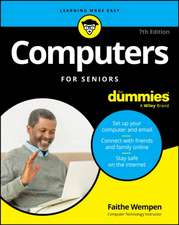 Computers for Seniors for DummiesFaithe Wempen-20%Preț: 98.90 lei123.63 lei
 -
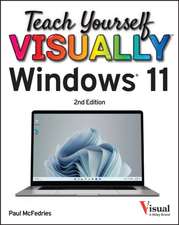 Teach Yourself VISUALLY Windows 11Paul McFedries-20%Preț: 165.76 lei207.19 lei
 -
 macOS Sequoia For DummiesG. Hart-DavisPreț: 211.39 lei
 -
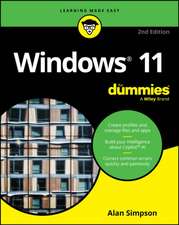 Windows 11 For DummiesAlan Simpson-20%Preț: 101.53 lei126.92 lei
 -
 -20%Preț: 144.32 lei180.41 lei
 -
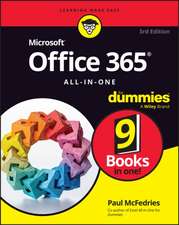 Microsoft 365 Office All-In-One for DummiesPaul McFedries-20%Preț: 175.66 lei219.57 lei
 -
 Microsoft 365 Word For Dummies, 2nd EditionDan Gookin-20%Preț: 141.41 lei176.77 lei
 -
 Teach Yourself VISUALLY Microsoft 365Paul McFedries-20%Preț: 170.73 lei213.41 lei
 -
 Macs For Seniors For Dummies, 5th EditionMark L. Chambers-20%Preț: 142.80 lei178.50 lei
 -
 Microsoft 365 Excel For DummiesDavid H. Ringstrom-20%Preț: 143.21 lei179.02 lei
 -
 -20%Preț: 144.71 lei180.89 lei
 -
 Excel Quick and EasyDick Kusleika-20%Preț: 81.87 lei102.34 lei
 -
 Linux Command Line and Shell Scripting BibleRichard Blum-20%Preț: 410.86 lei513.56 lei
 -
 macOS Tahoe For DummiesHart-DavisPreț: 173.89 lei
 -
 -40%Preț: 46.62 lei77.30 lei
 -
 Windows 11 for Seniors in Easy StepsNick Vandome-20%Preț: 100.48 lei125.60 lei
De ce să citești această carte
Recomandăm acest volum utilizatorilor care doresc să înțeleagă în detaliu mecanismele interne ale Windows 7. Cititorul câștigă independență în configurarea rețelelor, securizarea fișierelor și optimizarea performanței sistemului. Este o resursă esențială pentru cei care fac tranziția de la versiuni mai vechi și vor să exploateze la maximum noile funcționalități de networking și multimedia.
Descriere
Cuprins
About the Author;
About the Creative Team;
Acknowledgments;
The Missing Manual Series;
Introduction;
What's New;
About This Book;
The Very Basics;
Part One: The Windows 7 Desktop;
Chapter 1: Getting Started, Desktop, & Start Menu;
1.1 Getting Started;
1.2 The Windows Desktop-Now with Aero!;
1.3 The Start Menu;
1.4 The All Programs List;
1.5 Start Menu: The Right Side;
1.6 Start¿Shut down (Sleep, Restart, Log Off...);
1.7 Customizing the Start Menu;
1.8 Jump Lists;
1.9 The Run Command;
Chapter 2: Explorer, Windows, & the Taskbar;
2.1 Universal Window Controls;
2.2 New Window Tricks in Windows 7;
2.3 Windows Flip (Alt+Tab);
2.4 Windows Flip 3D;
2.5 Explorer Window Controls;
2.6 Optional Window Panes;
2.7 Libraries;
2.8 Tags, Metadata, and Properties;
2.9 Icon and List Views;
2.10 Sorting, Grouping, and Filtering;
2.11 Uni-Window vs. Multi-Window;
2.12 Immortalizing Your Tweaks;
2.13 The "Folder Options" Options;
2.14 Taskbar 2.0;
2.15 Three Ways to Get the Taskbar Out of Your Hair;
2.16 Taskbar Toolbars;
Chapter 3: Searching & Organizing Your Files;
3.1 Meet Windows Search;
3.2 Search from the Start Menu;
3.3 Explorer-Window Searches;
3.4 The Search Index;
3.5 Saved Searches;
3.6 The Folders of Windows 7;
3.7 Life with Icons;
3.8 Selecting Icons;
3.9 Copying and Moving Folders and Files;
3.10 The Recycle Bin;
3.11 Shortcut Icons;
3.12 Compressing Files and Folders;
3.13 Burning CDs and DVDs from the Desktop;
Chapter 4: Interior Decorating Windows;
4.1 Aero or Not;
4.2 A Gallery of Themes;
4.3 Desktop Background (Wallpaper);
4.4 Window Color;
4.5 Sounds;
4.6 Screen Savers;
4.7 Desktop Icons;
4.8 Mouse Makeover;
4.9 Preserving Your Tweaks for Posterity;
4.10 Monitor Settings;
Chapter 5: Getting Help;
5.1 Navigating the Help System;
5.2 Remote Assistance;
5.3 Getting Help from Microsoft;
Part Two: Windows 7 Software;
Chapter 6: Programs, Documents, & Gadgets;
6.1 Opening Programs;
6.2 Exiting Programs;
6.3 When Programs Die: The Task Manager;
6.4 Saving Documents;
6.5 Closing Documents;
6.6 The Open Dialog Box;
6.7 Moving Data Between Documents;
6.8 Speech Recognition;
6.9 Gadgets;
6.10 Filename Extensions and File Associations;
6.11 Installing Software;
6.12 Uninstalling Software;
6.13 Program Compatibility Modes;
6.14 Windows XP Mode;
Chapter 7: The Freebie Apps;
7.1 Windows Live Essentials;
7.2 Default Programs;
7.3 Desktop Gadget Gallery;
7.4 Internet Explorer;
7.5 Windows Anytime Upgrade;
7.6 Windows DVD Maker;
7.7 Windows Fax and Scan;
7.8 Windows Media Center;
7.9 Windows Media Player;
7.10 Windows Live Movie Maker;
7.11 Windows Update;
7.12 XPS Viewer;
7.13 Accessories;
7.14 Connect to a Network Projector;
7.15 Games;
7.16 Maintenance;
7.17 Startup;
7.18 Windows Live;
Chapter 8: The Control Panel;
8.1 Many Roads to Control Panel;
8.2 The Control Panel, Applet by Applet;
Part Three: Windows 7 Online;
Chapter 9: Hooking Up to the Internet;
9.1 Your New Network Neighborhood;
9.2 Wired Connections;
9.3 WiFi Hot Spots;
9.4 Cellular Modems;
9.5 Dial-Up Connections;
9.6 Connection Management;
Chapter 10: Internet Security;
10.1 Microsoft Security Essentials;
10.2 Action Center;
10.3 Windows Firewall;
10.4 Windows Defender;
10.5 SmartScreen Filter;
10.6 Privacy and Cookies;
10.7 History: Erasing Your Tracks;
10.8 The Pop-Up Blocker;
10.9 InPrivate Browsing;
10.10 InPrivate Filtering;
10.11 Internet Security Zones;
10.12 Hot Spot Security;
10.13 Protect Your Home Wireless Network;
10.14 Parental Controls;
Chapter 11: Internet Explorer 8;
11.1 IE8: The Grand Tour;
11.2 Tabbed Browsing;
11.3 Favorites (Bookmarks);
11.4 History List;
11.5 RSS: The Missing Manual;
11.6 Web Slices;
11.7 Tips for Better Surfing;
11.8 The Keyboard Shortcut Master List;
Chapter 12: Windows Live Mail;
12.1 Setting Up Windows Mail;
12.2 Sending Email;
12.3 Reading Email;
12.4 Junk Email;
12.5 The World of Mail Settings;
12.6 Calendar;
12.7 RSS Feeds;
12.8 Newsgroups;
Chapter 13: Windows Live Services;
13.1 Home;
13.2 Profile;
13.3 Spaces;
13.4 Mail;
13.5 Photos;
13.6 SkyDrive;
13.7 Calendar;
Part Four: Pictures, Music, & TV;
Chapter 14: Windows Live Photo Gallery;
14.1 Photo Gallery: The Application;
14.2 Getting Pictures into Photo Gallery;
14.3 The Post-Dump Slideshow;
14.4 The Digital Shoebox;
14.5 Tags and Ratings;
14.6 Editing Your Shots;
14.7 Finding Your Audience;
Chapter 15: Windows Media Player;
15.1 The Lay of the Land;
15.2 Importing Music Files;
15.3 Music Playback;
15.4 Playlists;
15.5 Burning Your Own CDs;
15.6 Sharing Music on the Network;
15.7 Online Music Stores;
15.8 DVD Movies;
15.9 Pictures and Videos;
Chapter 16: Windows Media Center;
16.1 Your Gear List;
16.2 Setup;
16.3 The Main Menu;
16.4 Extras;
16.5 Pictures+Videos;
16.6 Music: Your PC as Jukebox;
16.7 Now Playing;
16.8 Movies;
16.9 TV: Your PC as TiVo;
16.10 Sports;
16.11 Tasks;
16.12 Settings;
Part Five: Hardware & Peripherals;
Chapter 17: Print, Fax, & Scan;
17.1 Installing a Printer;
17.2 Printing;
17.3 Controlling Printouts;
17.4 Fancy Printer Tricks;
17.5 Printer Troubleshooting;
17.6 Fonts;
17.7 Faxing;
17.8 Scanning Documents;
Chapter 18: Hardware;
18.1 External Gadgets;
18.2 Device Stage;
18.3 Installing Cards in Expansion Slots;
18.4 Troubleshooting Newly Installed Gear;
18.5 Driver Signing;
18.6 The Device Manager;
Chapter 19: Laptops, Tablets, & Touchscreens;
19.1 Laptops;
19.2 Tablet PCs and Touchscreen PCs;
19.3 Windows Touch;
19.4 Windows Mobile;
19.5 Offline Files & Sync Center;
Part Six: PC Health;
Chapter 20: Maintenance & Speed Tweaks;
20.1 The Action Center;
20.2 Disk Cleanup;
20.3 Disk Defragmenter;
20.4 Hard Drive Checkups;
20.5 Disk Management;
20.6 Task Scheduler;
20.7 Three Speed Tricks;
20.8 Windows Update;
Chapter 21: The Disk Chapter;
21.1 Dynamic Disks;
21.2 Compressing Files and Folders;
21.3 Encrypting Files and Folders;
21.4 BitLocker Drive Encryption;
Chapter 22: Backups, System Restore, & Troubleshooting;
22.1 Automatic Backups;
22.2 System Images;
22.3 System Restore;
22.4 Shadow Copies (Previous Versions);
22.5 Safe Mode and the Startup Menu;
22.6 Troubleshooting Tools;
22.7 Startup Repair (Windows Recovery Environment);
Part Seven: Networking & Homegroups;
Chapter 23: Accounts & Logging On;
23.1 Introducing User Accounts;
23.2 Windows 7: The OS with Two Faces;
23.3 Local Accounts;
23.4 Authenticate Yourself: User Account Control;
23.5 Local Accounts on a Domain Computer;
23.6 Local Users and Groups;
23.7 Fast User Switching;
23.8 Logging On;
23.9 Profiles;
23.10 NTFS Permissions: Protecting Your Stuff;
Chapter 24: Setting Up a Workgroup;
24.1 Kinds of Networks;
24.2 Sharing an Internet Connection;
24.3 The Network and Sharing Center;
Chapter 25: Network Domains;
25.1 The Domain;
25.2 Joining a Domain;
25.3 Four Ways Life Is Different on a Domain;
Chapter 26: Sharing Files on the Network;
26.1 Three Ways to Share Files;
26.2 Homegroups;
26.3 Sharing the Public Folders;
26.4 Sharing Any Folder;
26.5 Accessing Shared Folders;
26.6 Mapping Shares to Drive Letters;
Chapter 27: Windows by Remote Control;
27.1 Remote Access Basics;
27.2 Dialing Direct;
27.3 Virtual Private Networking;
27.4 Remote Desktop;
Part Eight: Appendixes;
Installing & Upgrading to Windows 7;
Before You Begin;
Upgrade vs. Clean Install;
Dual Booting;
Installing Windows 7;
Getting Started;
Activation;
Windows Easy Transfer;
Fun with the Registry;
Meet Regedit;
Regedit Examples;
Where'd It Go?;
The Master Keyboard Shortcut List;
Windows Explorer keyboard shortcuts;
Colophon;