Cantitate/Preț
Produs

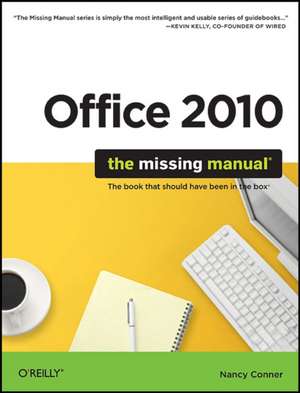
Office 2010: The Missing Manual

Autor Conner, Matthew Macdonald
en Limba Engleză Paperback – 24 aug 2010

Resursele practice care însoțesc volumul Office 2010: The Missing Manual sunt concepute pentru a compensa absența manualelor tipărite din pachetele software moderne. Considerăm că forța acestui ghid publicat de O'Reilly stă în detalierea fiecărei componente a suitei, de la procesarea de text în Word până la gestiunea bazelor de date în Access. Autorii Matthew Macdonald și Conner nu se limitează la prezentarea funcțiilor elementare, ci introduc utilizatorul în fluxuri de lucru avansate, precum utilizarea noii vederi Backstage pentru gestionarea eficientă a fișierelor. Abordarea diferă de Microsoft Office 2010 Demystified prin profunzimea tehnică — este mai puțin abstractă și mult mai aplicabilă în scenarii complexe de birou. În timp ce alte titluri, precum Office 2010 All-in-One For Dummies, fragmentează informația în minicărți, volumul de față menține o coerență structurală pe parcursul celor 954 de pagini, oferind un ton tehnic dar accesibil. Merită menționat că textul acoperă și instrumente secundare, dar esențiale pentru productivitate, cum sunt OneNote și Publisher, oferind o perspectivă de ansamblu asupra întregului ecosistem Microsoft. Indicatorii de experiență relevă un ritm de învățare progresiv. Analizăm metode de organizare a contactelor în Outlook, tehnici de sintetizare a datelor în Excel și integrarea clipurilor audio-video în PowerPoint. Stilul editorial pune accent pe eficiență, oferind trucuri pentru utilizatorii avansați care doresc să maximizeze potențialul suitei. Ilustrațiile alb-negru servesc drept ancoră vizuală, facilitând navigarea prin meniurile panglică (ribbon) specifice ediției 2010.

Citește tot Restrânge

Preț: 23521 lei

Preț vechi: 29401 lei
-20%

Puncte Express: 353

Carte disponibilă

Livrare economică 24 septembrie-08 octombrie

Livrare prin curier în România Termenul estimat este afișat lângă disponibilitate.
Transport gratuit de la 40000 lei Plată online sau ramburs, în funcție de opțiunile comenzii.
Retur gratuit în 14 zile Comandă securizată și suport în română.

Specificații

ISBN-13: 9781449382407
ISBN-10: 1449382401
Pagini: 954
Ilustrații: 1, black & white illustrations
Dimensiuni: 178 x 231 x 53 mm
Greutate: 1.52 kg
Ediția:1
Editura: O'Reilly

De ce să citești această carte

Recomandăm acest manual utilizatorilor care au nevoie de o documentație tehnică exhaustivă pentru suita Microsoft Office 2010. Cititorul câștigă control deplin asupra instrumentelor de calcul tabelar, baze de date și prezentări profesionale. Este o resursă esențială pentru cei care doresc să depășească utilizarea rudimentară a programelor, transformând pachetul software într-un instrument de productivitate avansată.


Descriere

Microsoft Office is the most widely used software suite in the world. The half-dozen programs in Office 2010 are packed with amazing features, but most people just know the basics. This entertaining guide not only gets you started with Office, it reveals all kinds of useful things you didn't know the software could do -- with plenty of power-user tips and tricks when you're ready for more.Create professional-looking documents. Learn everything you need to know to craft beautiful Word documents.Stay organized. Keep track of your email, calendar, and contacts with Outlook.Crunch numbers with ease. Assemble data, make calculations, and summarize the results with Excel.Make eye-catching presentations. Build PowerPoint slideshows with video and audio clips, animations, and more.Build Access databases quickly. Make your data easy to find, sort, and manage.Manage your files more efficiently. Use the new Backstage view to quickly work with your Office files.Get to know the whole suite. Learn to use other handy Office tools: Publisher, OneNote, and Office Web Apps.

Cuprins

The Missing Credits; About the Authors; About the Creative Team; Acknowledgements; The Missing Manual Series; Introduction; What Is Office 2010?; What's New in Office 2010; About This Book; The Very Basics; Part One: Word; Chapter 1: Basic Word Processing; 1.1 Opening Word; 1.2 Creating a New Document; 1.3 Typing in Some Text; 1.4 Saving a Document; 1.5 Closing a Document; 1.6 Opening an Existing Document; 1.7 Different Ways to View Your Work; Chapter 2: Editing and Formatting; 2.1 Selecting and Moving Text; 2.2 Finding and Replacing Text; 2.3 Text Formatting: Font, Size, and Style; 2.4 Paragraph Formatting: Aligning, Indenting, Spacing; 2.5 Working with Lists; 2.6 Formatting a Document; Chapter 3: Tables, Graphics, and Charts; 3.1 Creating a Table; 3.2 Adding Information to a Table; 3.3 Editing a Table; 3.4 Formatting a Table; 3.5 Inserting Images; 3.6 Editing an Image; 3.7 Fun with Fonts and Art That's Smart; 3.8 Adding Charts and Diagrams; Chapter 4: Proofing and Research Tools; 4.1 Checking Spelling and Grammar; 4.2 Getting Things Right with AutoCorrect; 4.3 Word's Built-in Research Tools; Chapter 5: Printing Documents; 5.1 Getting Started with Printing; 5.2 Selecting Print Options and Settings; 5.3 Sending a Fax; 5.4 Printing Envelopes; 5.5 Printing Labels; 5.6 Merging Names and Addresses with Documents; Chapter 6: Reports and Long Documents; 6.1 Inserting Page Breaks; 6.2 Breaking a Document into Sections; 6.3 Footnotes and Endnotes; 6.4 Citations and Bibliographies; 6.5 Helping Readers Navigate Your Document; Chapter 7: Customizing Your Documents with Themes, Templates, and Macros; 7.1 Themes: The Way to Better Designs; 7.2 Templates: Reusable Document Blueprints; 7.3 Save Time with Macros; Chapter 8: Desktop and Web Publishing; 8.1 Newsletters and Brochures; 8.2 Web Page Design; Chapter 9: Sharing and Collaborating on Documents; 9.1 Sharing a Document; 9.2 Adding Comments; 9.3 Tracking Changes; 9.4 Comparing Documents; 9.5 Combining Documents; 9.6 Protecting Your Documents; 9.7 Coauthoring and Simultaneous Editing; Part Two: Outlook; Chapter 10: Getting Started with Outlook; 10.1 Setting Up Outlook; 10.2 Taking a Quick Look Around; 10.3 Composing and Sending Email; 10.4 Receiving Email; 10.5 Printing a Message; 10.6 Fighting Spam; 10.7 Saving Time with Quick Steps; 10.8 Managing Multiple Email Accounts; Chapter 11: Outlook's Address Book; 11.1 Adding and Editing Contacts; 11.2 Finding a Contact; 11.3 Viewing Contacts; 11.4 Communicating with a Contact; 11.5 Gathering Contacts into a Group; 11.6 Printing Your Contacts; Chapter 12: Getting Organized with Folders; 12.1 Finding Folders in the Navigation Pane; 12.2 Creating a New Folder; 12.3 Filling Up and Managing Folders; 12.4 Categorizing Items; 12.5 Customizing Views; 12.6 Searching Folders; 12.7 Cleaning Out Folders; Chapter 13: Getting Organized with Outlook's Calendar, Tasks, and Notes; 13.1 Your Schedule, Your Calendar; 13.2 Creating an Appointment or Meeting; 13.3 Editing Events; 13.4 Viewing Your Schedule; 13.5 Tasks; 13.6 Adding a Task; 13.7 Managing Tasks; 13.8 Viewing Tasks; 13.9 Taking Notes in Outlook; Part Three: Excel; Chapter 14: Creating Your First Spreadsheet; 14.1 Creating a Basic Worksheet; 14.2 Moving Around the Grid; 14.3 A Tour of the Excel Window; 14.4 Saving Files; 14.5 Opening Files; 14.6 Adding Different Types of Data; 14.7 Printing; 14.8 Controlling Pagination; Chapter 15: Moving Data and Managing Worksheets; 15.1 Selecting Cells; 15.2 Moving Cells Around; 15.3 Adding and Moving Columns or Rows; 15.4 Worksheets and Workbooks; Chapter 16: Formatting Cells; 16.1 Formatting Cell Values; 16.2 Formatting Cell Appearance; Chapter 17: Building Basic Formulas; 17.1 Creating a Basic Formula; 17.2 Functions; 17.3 Formula Errors; 17.4 Logical Operators; 17.5 Formula Shortcuts; 17.6 Copying Formulas; Chapter 18: A Function Sampler and Formula Troubleshooting; 18.1 Rounding Numbers; 18.2 Manipulating Text; 18.3 Solving Formula Errors; Chapter 19: Creating Charts; 19.1 Charting 101; 19.2 Basic Tasks with Charts; 19.3 Practical Charting; 19.4 Chart Types; 19.5 Chart Styles and Layouts; 19.6 Adding Chart Elements; Part Four: PowerPoint; Chapter 20: Creating a Presentation; 20.1 Creating a New Presentation; 20.2 Saving a Presentation; 20.3 Opening an Existing Presentation; 20.4 Adding Notes; 20.5 Viewing a Presentation; 20.6 Printing a Presentation; Chapter 21: Editing Slides; 21.1 Editing Text; 21.2 Embedding Other Files in Slides; 21.3 Adding Tables to Slides; 21.4 Adding Images to Slides; 21.5 Arranging Objects on a Slide; Chapter 22: Editing a Presentation; 22.1 Copying, Rearranging, and Deleting Slides; 22.2 Headers and Footers; 22.3 Organizing Your Presentation with Sections; 22.4 Navigating with Links and Action Buttons; 22.5 Slide Masters: Powerful Slide Blueprints; 22.6 Collaborating with Others; Chapter 23: Adding Multimedia and Movement; 23.1 Putting Media Clips in a Presentation; 23.2 Animating Objects; 23.3 Creating Transitions Between Slides; Chapter 24: It's Showtime! Giving a Presentation; 24.1 Start, Navigate, End: Tips and Shortcuts; 24.2 Before the Show: Prep Work; 24.3 At the Event; 24.4 Other Presentation Options; 24.5 Sharing Your Presentation; Part Five: Access; Chapter 25: Creating Your First Database; 25.1 Understanding Access Databases; 25.2 Getting Started with Your First Database; 25.3 Saving Databases; 25.4 Opening Databases; 25.5 The Navigation Pane; Chapter 26: Building Smarter Tables; 26.1 Understanding Data Types; 26.2 Design View; 26.3 Access Data Types; 26.4 The Primary Key; 26.5 Six Principles of Database Design; 26.6 Blocking Bad Data; 26.7 Data Integrity Basics; 26.8 Lookups; Chapter 27: Mastering the Datasheet: Sorting, Searching, Filtering, and More; 27.1 Datasheet Customization; 27.2 Datasheet Navigation; 27.3 Printing the Datasheet; Chapter 28: Linking Tables with Relationships; 28.1 Relationship Basics; 28.2 Using a Relationship; 28.3 More Exotic Relationships; Part Six: Other Office Tools; Chapter 29: Publisher; 29.1 Creating a New Publication; 29.2 Adding Text; 29.3 Adding Pictures, Shapes, and Other Objects; 29.4 Designing and Laying Out Pages; 29.5 Reviewing Your Design; 29.6 Printing a Publication; Chapter 30: OneNote; 30.1 What is OneNote?; 30.2 Creating and Filling up a Notebook; 30.3 Organizing a Notebook; 30.4 Managing Individual Notes; 30.5 Viewing Your Notebooks; 30.6 Sharing Notes; 30.7 Using OneNote with Other Office Programs; Chapter 31: Office Web Apps; 31.1 Introducing Office on the Web; 31.2 Setting Up Office Web Apps; 31.3 Creating and Editing Files; 31.4 Working with Folders in SkyDrive; 31.5 Managing Files in SkyDrive; 31.6 Sharing Files; 31.7 Docs.com: Office Web Apps for Facebook; Part Seven: Appendix; Customizing Office 2010 Applications; Customizing the Quick Access Toolbar; Customizing the Ribbon; Customizing the Status Bar; Colophon;